

Field teams need a reliable way to record hours away from a central workplace. Mobile time tracking for field employees lets workers log time on a phone while managers review entries and use them to support scheduling and payroll. The exact process depends on the app and the business’s time-approval workflow.
When employees move between job sites, paper timesheets and end-of-week reminders can make it difficult to track when people worked. A mobile process brings time records together, giving managers a clearer view of submitted hours and helping them compare actual time with planned schedules.
This guide explains how mobile time tracking works, what to look for in an app, and how time records can connect with scheduling and payroll workflows. It also covers useful app features, factors that affect pricing, and how a free trial can help you assess whether a tool fits your team.
Key Takeaways
- Match an app’s time-entry and review process to the realities of your field teams and job sites.
- Set clear timesheet approval steps so managers can review hours before records flow into payroll.
- Connect scheduling with time records to spot differences between planned shifts and hours submitted.
- Compare Android and iOS access, device usability, and team workflows before choosing an app.
How Does Employee Time Tracking Software Work?
The best mobile time-tracking app for field service teams in 2026 is the one that fits their job sites, devices, and approval workflow. For mobile time tracking for field employees, the basic process is simple: workers record shifts, managers review entries, and approved hours move toward payroll.
Mobile Clock-In and Clock-Out
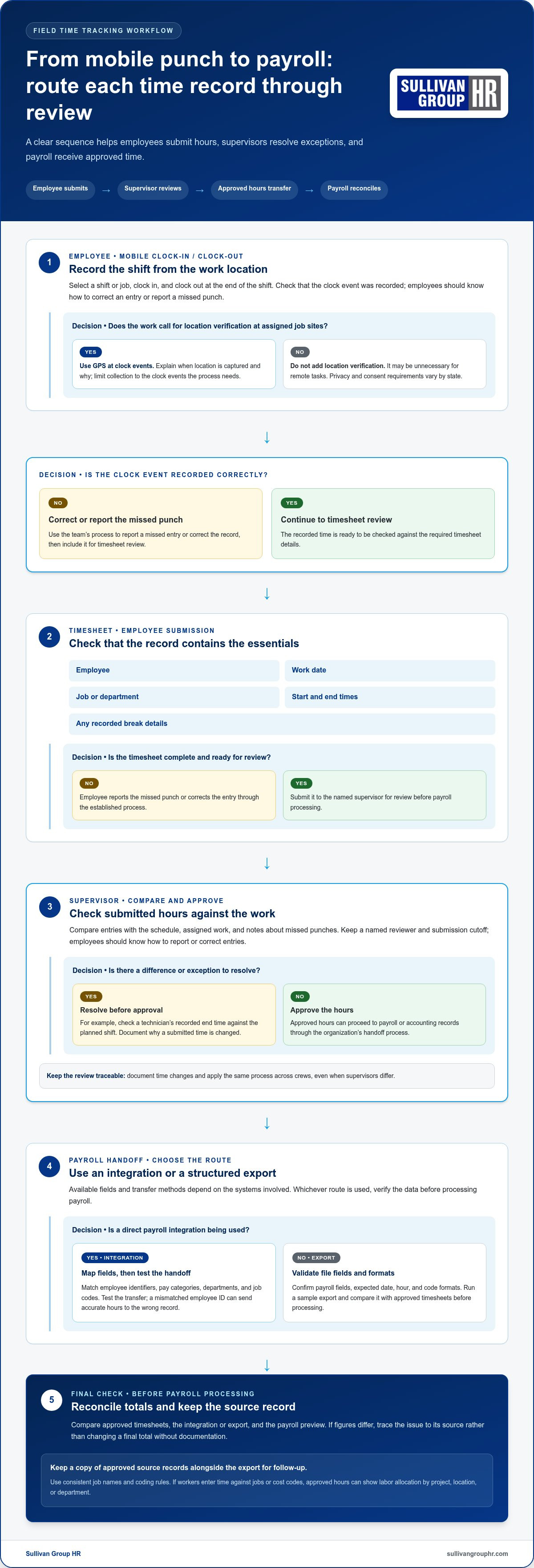
A field employee opens the app, selects a shift or job, and taps clock-in. At the end of the shift, they clock out, and the system records the times for review. Remote employees can follow the same steps from their work location. When comparing apps, check how easily workers can select a job, correct an entry, and confirm that a clock event was recorded.
GPS Location Verification
Some apps capture GPS location when a worker clocks in or out, allowing a manager to compare the recorded location with the assigned job site. This verifies a time entry, not every movement. Decide whether location verification suits your work, explain when the app captures location, and limit tracking to the clock events your process needs. GPS privacy and consent requirements vary across the United States, including by state. Clear notice and limited collection help employees understand the practice.
Time Clocks Across Devices
Phones work well for employees traveling between sites, while a shared tablet may suit a crew starting from one depot or worksite. Some systems also support browser-based clocking on computers. Compare sign-in steps, screen readability, and how each device handles missed entries. Supervisors should be able to review the same time records regardless of whether employees use phones, tablets, or computers.
Useful app features include clear clock-in and clock-out controls, job or shift selection, timesheet review, and manager approvals. GPS location verification may suit work tied to assigned sites, but it may be unnecessary for remote tasks. Choose features that match how your team works, rather than adding tools employees won’t use. For industry-specific field operations such as security guard companies, resources like cardinalcsm.com offer software, coaching, and mentorship to help teams launch, manage shifts, and scale.
In the United States, mobile time tracking must support applicable federal and state wage-and-hour recordkeeping rules. Specific requirements depend on the work arrangement and jurisdiction. Configure records to capture hours worked and retain them through the employer’s established process. GPS privacy and consent rules also vary by state, so explain location collection and its purpose before rollout.
Roll out the app in stages: configure job options, test clocking with a small group, train employees, and then launch across teams. During a large technology rollout, provide ample IT support as employees adjust to new tools, according to the U.S. Government Publishing Office. Use early questions and time-entry errors to improve instructions before expanding access.
Timesheets, approvals, and payroll integrations
A mobile time entry is useful when it moves through a clear review process and reaches payroll accurately. Connect each step: employees submit timesheets, supervisors approve exceptions, and payroll staff transfer approved hours into payroll or accounting records.
Timesheets and manager approvals
A complete timesheet should show the employee, work date, job or department, start and end times, and any recorded break details. Before approving it, a supervisor can compare entries with the schedule, assigned work, and notes about missed punches. For example, if a technician’s recorded end time differs from the planned shift, the reviewer can resolve the discrepancy before approval.
Set a clear approval routine with a named reviewer and submission cutoff. Employees should know how to report a missed punch or correct an entry, while managers should document why they change a submitted time. This creates a traceable review trail and reduces confusion when payroll staff need clarification. Keep the process consistent across crews, even when different supervisors review timesheets.
Payroll integrations and timesheet exports
An integration can transfer approved time data from a tracking system into payroll, reducing the need to re-enter each shift. Available fields and transfer methods depend on the systems involved. Before relying on an automated handoff, map employee identifiers, pay categories, departments, and job codes between the systems. A mismatched employee ID, for example, can send accurate hours to the wrong record.
If you don’t use a direct integration, an export can provide a structured handoff. Confirm that the file includes the fields payroll needs and that dates, hours, and codes use the expected format. Run a sample export, compare it with approved timesheets, and resolve differences before processing payroll. Keep a copy of the approved source records alongside the export for follow-up.
Job costing and payroll-ready reports
When workers enter time against jobs or cost codes, approved hours can show labor allocation by project, location, or department. Depending on the system’s configuration, a payroll-ready report may summarize regular hours, overtime categories, and job assignments. For example, a manager can check that a crew’s hours are assigned to the right project before payroll processing and accounting review.
Reports are only as useful as their setup. Use consistent job names and coding rules, and limit editing access to people responsible for time review. Compare totals across approved timesheets, the export, and the payroll preview. If figures differ, trace the issue to its source instead of adjusting a final total without documentation.
If handling the handoff internally is creating extra administrative work, payroll administration support can help organize payroll processing and time records.
Tracking and scheduling employees in the field
Field scheduling connects planned shifts with attendance records, assigned work, and manager approvals. For example, a service team can compare its daily job schedule with submitted hours, then follow up on missed shifts or late starts.
Organize software schedules around the information dispatchers use: employee, shift, job, location, and required skills. A scheduler assigning a repair visit can select a qualified technician, add the job to the calendar, and share the shift details. Check how employees see schedule changes, including whether notifications appear in the app or another configured channel. A clear update identifies the changed shift, its location, and the action expected from the worker.
Time-off tracking helps schedulers understand availability before assigning work. Employees submit requests through the designated process, and managers review them against existing shifts and coverage needs. For example, if a technician requests time off on a day with a scheduled installation, the manager can review coverage before approving the request. Keep the request status visible to both parties so a pending request isn’t mistaken for approved leave. Approved time off should flow into the scheduling view, preventing assignments that conflict with recorded unavailability.
Field workflows also need a practical way to handle changes during the day. If a customer reschedules a visit, the dispatcher updates the job and tells the affected employee where to go next. If an employee finishes early or a job takes longer, the manager can compare the schedule with attendance records and adjust later assignments. Accurate job details show which shift and location each time entry belongs to, but a planned schedule does not prove hours worked.
Use schedule and attendance data together to review workload and overtime patterns. A manager can compare planned shift lengths with recorded hours, then follow the company’s established approval process when actual time differs. For instance, an extended job may affect a technician’s next assignment, so dispatch should review the schedule before adding work. Software is most useful when employees know how to report changes, managers own approvals, and schedule edits remain visible to the people affected.
Before rollout, define who creates shifts, approves time-off requests, and handles same-day changes. Then walk through a sample field day: publish assignments, communicate a schedule change, record attendance, and resolve a discrepancy. This practical test shows whether the workflow supports dispatchers, employees, and managers without adding unclear steps.
Mobile app availability for Android and iOS
Mobile time tracking lets field workers record hours at a job site without returning to a central time clock. Potential drawbacks include reliance on a usable device, app compatibility, and a clear process for correcting errors. Android and iOS access can make clocking more convenient, but the app must work with the phones employees already use.
List the devices your team uses, then compare them with the app’s supported platforms. If one crew uses Android phones and another uses iPhones, both groups need a workable clock-in process. Check whether each version supports essential tasks, such as selecting a job, recording a shift, viewing submitted time, and correcting a missed punch. A feature may work differently across platforms, so test the workflows your employees will actually use.
App access also depends on device availability and working conditions. Employees using personal phones may have different access and privacy expectations from those using company devices. At a remote job site with weak connectivity, check the app’s offline behavior: can an entry be saved and submitted later, or do workers need a manual fallback? Give employees simple instructions for reporting a failed clock-in instead of relying on memory at the end of a shift.
Before rollout, test the app on representative Android and iOS devices. Ask workers to complete a sample shift: sign in, select the correct job, clock in, and review the recorded entry. Then test a missed punch and follow the manual correction process. Confirm that managers can see the corrected record and understand its status. These steps reveal differences in screen layout, navigation, and permissions before the workflow reaches every crew.
Platform fit involves more than downloading an app. Consider whether older devices can run it, whether workers can sign in reliably, and how updates affect the process. For example, an employee sharing a tablet at a depot needs a clear sign-out step before someone else uses it. A field employee using a phone needs confirmation after clocking. Make support instructions specific: identify the right app, explain the first sign-in, and state who handles access problems.
Keep the manual fallback consistent with the digital record. If an employee can’t clock in at a job site, they should record shift details through the approved process and report the issue promptly. A manager can then review and correct the entry while maintaining a consistent attendance record. Comparing Android and iOS workflows during a small pilot can reveal usability problems before they affect the full team.
Pricing and free trials for field time-tracking tools
Field time-tracking software pricing often combines a per-user charge with a base fee. For example, a team’s total depends on its user count and the plan selected. Compare the full billing structure, not just the advertised per-user rate.
Check what each plan includes before comparing costs. One entry-level option may cover basic clocking and timesheets, while another may reserve scheduling, approvals, or reporting for a higher tier. A field crew that needs job assignments and payroll exports should compare those functions directly. Also find out whether charges are based on active users, assigned devices, or another measure.
Free plans can help a small team test a workflow, but user limits and feature restrictions matter. A plan might cap users, restrict reports, or exclude integrations. Consider a landscaping crew that wants every worker to submit entries and managers to review them. If the free tier supports only part of the team, the results may not reflect the full process. Read the plan terms for included users, available tools, and any limits on stored records.
A free trial lets you test tracking software with real work scenarios before choosing a paid plan. Check whether employees can clock in on their devices, select the right job, and record breaks as your process requires. Then have a manager review entries, resolve a missed punch, and produce a sample report. This reveals workflow gaps that a feature list alone won’t show.
Keep the trial focused. Before starting, list the tasks the app must handle, then assign employees and managers to test them. For example, follow a field shift from clock-in through timesheet review and export. Note which features require manual steps, which records managers can see, and whether the plan supports your team’s devices. A written checklist makes trial results easier to compare.
Before subscribing, compare the expected user count, needed features, device access, and billing terms. Confirm how adding or removing users affects the bill, and whether the selected plan supports your approval and reporting workflow. If your workforce software review also includes hiring processes, explore applicant tracking support as part of that broader evaluation.
Sullivan Group HR: HCM
Sullivan Group HR helps businesses coordinate human capital management and payroll needs. If field time records are adding work to payroll, its Payroll Administration and Payroll Outsourcing services may be a fit. HCM brings broader workforce management needs together, including payroll, HR, and employee-benefits solutions.
Consider support when your team needs a clearer handoff from approved hours to payroll processing, or payroll administration is taking focus away from daily operations. Sullivan Group HR also offers an Applicant Tracking System for organizations managing hiring alongside workforce needs. The right support depends on which administrative tasks your business wants to manage internally and which it wants to outsource.
To discuss your workforce and payroll needs, contact Sullivan Group HR or visit sullivangrouphr.com.
Make your next workforce decision with confidence
Decide who will own each part of your timekeeping process. Before changing tools or workflows, identify who reviews exceptions, prepares payroll records, and handles employee questions. Clear ownership helps turn recorded hours into a dependable routine rather than another disconnected system.
When those responsibilities stretch your internal team, Sullivan Group HR can support broader workforce needs through HCM, Payroll Outsourcing, and Payroll Administration. These services can help coordinate workforce processes or move payroll tasks into a managed workflow. A focused conversation can help clarify which responsibilities you want to keep and where support could fit.
Contact Sullivan Group HR to discuss your workforce and payroll needs. With a thoughtful process and the right support, your team can move forward with greater clarity and keep its attention on the work ahead.
Frequently Asked Questions
How much does mobile time-tracking software cost per employee?
The total depends on the number of users and the plan’s included features. For a useful estimate, count employees who need access, then identify whether your team needs scheduling, job-costing reports, or payroll connections. Compare the full billing structure, not just the per-user amount.
How do GPS tracking and geofencing work in employee time-tracking apps?
GPS tracking uses a device’s location to record where an employee clocks in or out. Geofencing sets a virtual boundary around a work area, such as a project site, and can support location-based clocking rules. These tools serve different purposes: GPS records location information, while a geofence defines an area. Explain what location data the app collects and how it relates to time entries.
How can field employees clock in and out offline or with poor cell service?
Employees can use an app’s offline-entry function if it saves clock events on the device and syncs them when connectivity returns. If the app cannot record offline, workers should follow a documented manual fallback, noting their start time, end time, job, and reason for the missed entry. For example, a technician can report a clock-in from a dead zone to a supervisor for review and correction.
How do mobile time clocks integrate with payroll, scheduling, and job-costing software?
Mobile time records can move into connected systems through an integration or structured file export. Employee IDs link hours to payroll records, schedule data compares planned and worked shifts, and job codes assign labor to projects. For example, a landscaping company can associate a crew’s hours with a specific property before reporting labor costs. Use consistent employee and job identifiers across systems.
How can employers prevent buddy punching and inaccurate mobile time entries?
Reduce buddy punching by requiring each worker to use an individual account and reviewing entries for unusual patterns. A supervisor can compare clock events with assigned jobs and investigate duplicate-looking entries or unexplained changes. GPS checks at clock-in can provide another review signal when appropriate. Clear correction steps also help: employees report missed punches promptly, and managers document changes rather than silently overwriting records.
What are the best mobile time-tracking apps for field service teams in 2026?
The best app is the one that fits your field teams’ job sites, devices, and approval workflow. Look for clear clock-in and clock-out controls, job or shift selection, timesheet review, and manager approvals.
What U.S. labor laws and state rules apply to mobile employee time tracking?
Mobile time tracking must support applicable federal and state wage-and-hour recordkeeping rules, with specific requirements depending on the work arrangement and jurisdiction. GPS privacy and consent rules also vary by state. Explain when and why location is collected, and limit collection to needed clock events.


